It's hard for me to imagine going without email for a day. It's such an easy and convenient way to communicate with my friends and family. However, there was one limitation that bothered me: my family members and friends who prefer to communicate in Hindi did not have an easy way to type and send email in their language of choice. I am extremely happy to announce the launch of a new feature in Gmail that makes it easy to type email in Indian languages.
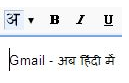
When you compose a new mail in Gmail, you should now see an icon with an Indian character, as the screenshot below shows. This feature is enabled by default for Gmail users in India. If you do not see this function enabled by default, you will need to go the "Settings" page and enable this option in the "Language" section.
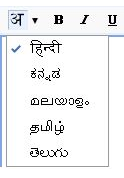
 When you click the Indian languages icon, you can type words the way they sound in English and Gmail will automatically convert the word to its Indian local language equivalent. For example, if a Hindi speaker types "namaste" we will transliterate this to "नमस्ते." Similarly, "vanakkam" in Tamil will become "வணக்கம்." We currently support five Indian languages -- Hindi, Tamil, Telugu, Kannada and Malayalam -- and you can select the language of your choice from the drop-down list next to the icon.
 We built this new feature using Google's transliteration technology, which is also available on Google India Labs, Orkut, Blogger and iGoogle. I hope you find this feature useful to communicate with those of your friends and family who prefer to write in their native language, and it will be available soon to businesses and schools using Google Apps. Now back to replying to all those Hindi emails I got from my family and friends today!
When you compose a new mail in Gmail, you should now see an icon with an Indian character, as the screenshot below shows. This feature is enabled by default for Gmail users in India. If you do not see this function enabled by default, you will need to go the "Settings" page and enable this option in the "Language" section.
 When you click the Indian languages icon, you can type words the way they sound in English and Gmail will automatically convert the word to its Indian local language equivalent. For example, if a Hindi speaker types "namaste" we will transliterate this to "नमस्ते." Similarly, "vanakkam" in Tamil will become "வணக்கம்." We currently support five Indian languages -- Hindi, Tamil, Telugu, Kannada and Malayalam -- and you can select the language of your choice from the drop-down list next to the icon.
 We built this new feature using Google's transliteration technology, which is also available on Google India Labs, Orkut, Blogger and iGoogle. I hope you find this feature useful to communicate with those of your friends and family who prefer to write in their native language, and it will be available soon to businesses and schools using Google Apps. Now back to replying to all those Hindi emails I got from my family and friends today!
Who knows where to download XRumer 5.0 Palladium?
ReplyDeleteHelp, please. All recommend this program to effectively advertise on the Internet, this is the best program!